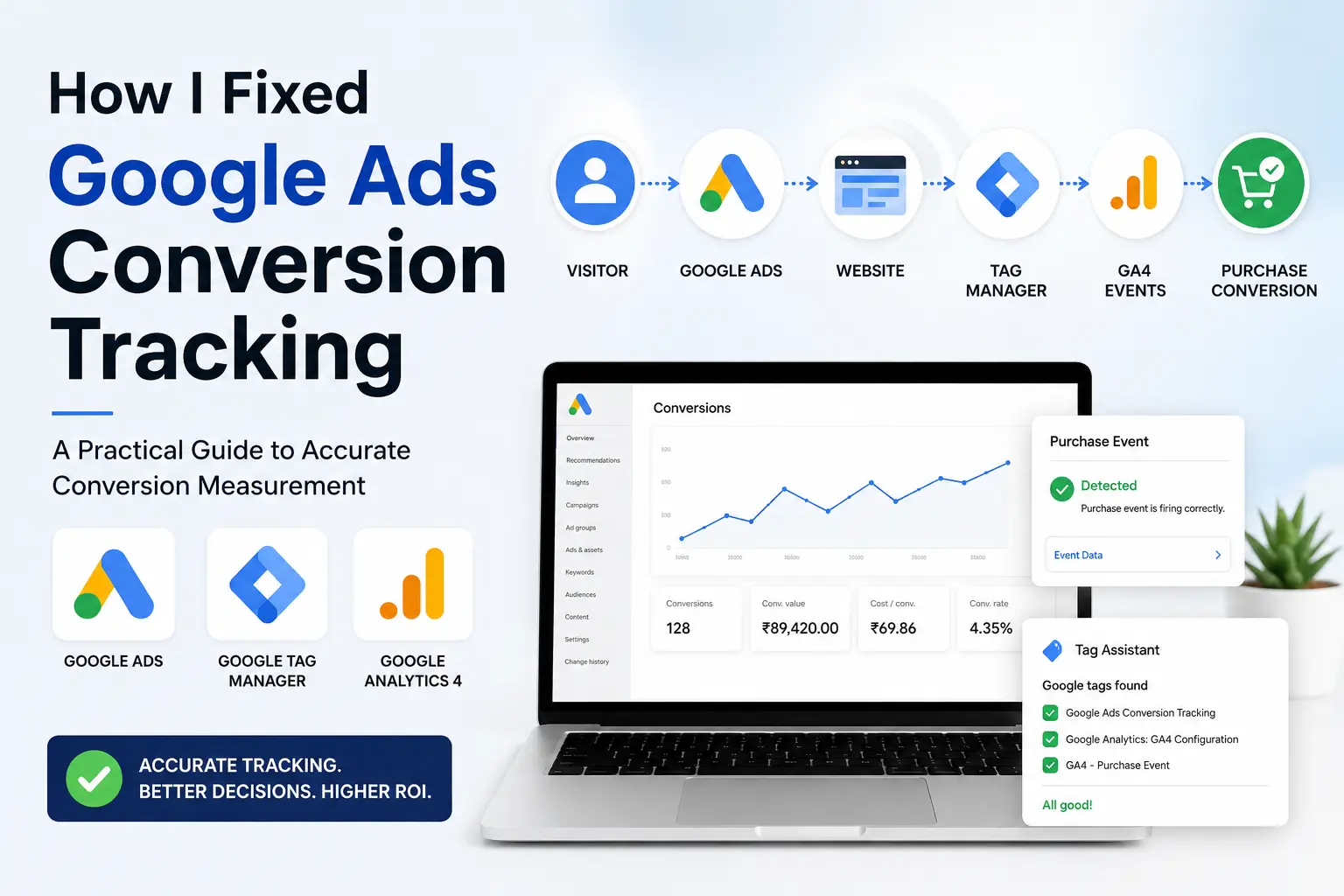
Introduction
Launching Google Ads campaigns is relatively straightforward. You can create campaigns, choose keywords, write compelling ad copy, and start attracting visitors within a few hours.
However, launching campaigns is only the beginning.
The real challenge begins after someone clicks your advertisement.
- Did they make a purchase?
- Did they submit a lead form?
- Did they complete the checkout process?
- Did Google Ads receive that information?
Without accurate conversion tracking, every marketing decision becomes a guess.
This article documents the process I followed to troubleshoot and resolve Google Ads conversion tracking issues using Google Analytics 4 (GA4), Google Tag Manager (GTM), and Google’s Tag Assistant.
If you’re seeing situations such as:
- Clicks but no conversions
- Revenue in GA4 but zero conversions in Google Ads
- “Needs Attention” warnings
- Duplicate purchase events
- Inconsistent conversion counts
This guide will help you systematically identify and fix the problem.
Why Conversion Tracking Matters
Many marketers focus on impressions, clicks, and click-through rates. While these metrics are useful, they do not answer the most important business question:
Which marketing efforts generated actual business results?
Suppose Campaign A generated 2,000 clicks while Campaign B generated only 500.
At first glance, Campaign A appears more successful.
However, if Campaign A generated only two sales while Campaign B generated twenty, Campaign B clearly delivers greater business value.
Conversion tracking allows you to measure outcomes rather than activity.
It helps answer questions such as:
- Which campaigns generate revenue?
- Which keywords produce qualified customers?
- Which landing pages convert best?
- Which devices produce the highest return?
- Which audience segments deserve larger budgets?
Without conversion tracking, optimization becomes impossible.
Understanding the Complete Tracking Flow
Many marketers assume conversion tracking consists of installing one tag.
In reality, the tracking process involves several interconnected systems.
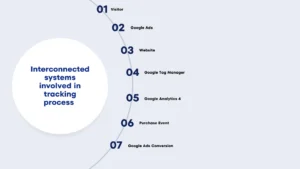
Each step depends on the previous one. If any link in this chain breaks, conversions may never appear inside Google Ads.
Common Implementation Mistakes
After reviewing multiple tracking implementations, I found that most issues fall into a few recurring categories.
-
Duplicate Purchase Tracking
One of the most common problems occurs when purchases are sent from multiple systems simultaneously.
For example:
- Google Tag Manager
- WooCommerce plugins
- Google Analytics 4
- Direct Google Ads tags
If all four send purchase events independently, Google Ads may receive duplicate conversions. This often produces warnings in Tag Assistant.
Recommendation:
Choose one primary implementation strategy and keep it consistent.
-
Purchase Marked as Secondary
Google Ads distinguishes between:
Primary conversions
Secondary conversions
Only Primary conversions influence automated bidding strategies.
Always verify that your purchase conversion is marked as Primary if it represents your main business goal.
-
Missing Purchase Event
Sometimes page views are tracked correctly while purchases are not.
This usually happens because the purchase event never fires on the order confirmation page.
-
Wrong Conversion ID
If the conversion ID or conversion label doesn’t match the configuration inside Google Ads, conversions won’t be recorded.
Always verify both values.
-
Thank You Page Issues
Many ecommerce websites redirect customers through payment gateways.
If the Thank You page fails to load correctly, purchase events may never trigger.
GA4 vs Google Ads Conversions
This is one of the most misunderstood topics in digital marketing. Although both platforms measure conversions, they do so differently.
Google Analytics 4
GA4 focuses on understanding user behaviour.
It answers questions such as:
- How users discovered your website
- Which pages they visited
- How long they stayed
- Which events they completed
GA4 provides a complete customer journey.
Google Ads
Google Ads focuses on optimization. It uses conversion data to determine:
- Which auctions to enter
- Which users to target
- How aggressively to bid
- Which ads deserve more impressions
Because their purposes differ, slight differences between GA4 and Google Ads conversion counts are normal.
Large discrepancies, however, usually indicate implementation problems.
My GTM Setup
I prefer using Google Tag Manager as the central point for managing tracking.
Rather than embedding multiple scripts directly into the website, GTM acts as the control centre.
Typical setup:
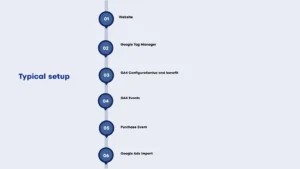
Benefits include:
- Easier debugging
- Version control
- Fewer hard-coded scripts
- Better scalability
- Simpler maintenance
My Troubleshooting Process
Whenever conversion tracking fails, I avoid changing multiple settings at once. Instead, I follow a structured checklist.
Step 1
Confirm Google Ads tag installation.
Step 2
Verify GTM container loads correctly.
Step 3
Confirm GA4 configuration fires.
Step 4
Verify purchase event appears.
Step 5
Test using Tag Assistant.
Step 6
Confirm purchase reaches GA4.
Step 7
Verify imported conversion inside Google Ads.
Only after each step succeeds do I move to the next.
Testing with Tag Assistant
Google’s Tag Assistant is one of the most valuable debugging tools available.
A typical testing session involves:
- Launch Tag Assistant.
- Connect to your website.
- Complete a test purchase.
- Reach the Thank You page.
- Review every event that fired.
Pay particular attention to:
- Purchase
- Page View
- Begin Checkout
- Add to Cart
Then inspect which tags fired. Ideally you should see:
- GA4 Purchase
- Google Ads Conversion (if implemented directly)
If multiple purchase tags fire unexpectedly, investigate duplicate implementations.
Common Pitfalls
Over time I noticed several recurring mistakes.
Measuring Clicks Instead of Business Outcomes
- Clicks are useful.
- Revenue is more useful.
- Always optimize for meaningful business objectives.
Ignoring Diagnostic Warnings
Messages such as:
- Needs Attention
- No Recent Conversions
- Duplicate Conversions
These should never be ignored.
They often reveal implementation issues before they affect campaign performance.
Importing the Wrong Conversion
Google Ads allows multiple conversion actions.
Ensure Smart Bidding optimizes toward the correct business goal.
Testing Without Real Transactions
Preview modes are valuable.
However, completing an actual purchase provides the most reliable verification.
Changing Multiple Variables Simultaneously
When troubleshooting, modify one component at a time.
Otherwise identifying the root cause becomes extremely difficult.
Best Practices
Over time I adopted several habits that significantly reduced tracking problems.
- Keep One Source of Truth :Avoid multiple independent purchase implementations.
- Use Google Tag Manager: Centralized management improves maintainability.
- Test After Every Major Change: Never assume tracking still works after:
- Plugin updates
- Theme changes
- Checkout modifications
- Payment gateway updates
- Review Diagnostics Regularly: Visit Google Ads Diagnostics periodically rather than waiting until campaigns stop reporting conversions.
- Document Every Change: Maintain a simple tracking log. Documentation simplifies future troubleshooting.
Lessons Learned
- Perhaps the biggest lesson was this:
- Conversion tracking is not a task you complete once.
- It is a system that requires continuous monitoring.
- Websites evolve.
- Plugins update.
- Payment gateways change.
- Advertising platforms introduce new features.
- Regular verification ensures your data remains trustworthy.
Frequently Asked Questions
- Why does Google Ads show zero conversions while GA4 records purchases?
This usually indicates a configuration issue such as incorrect imports, inactive conversion actions, or missing purchase events.
- Should I track purchases using GA4 or Google Ads?
Both approaches work. Many advertisers use GA4 as the primary event source and import important conversions into Google Ads for optimization.
- How often should I test conversion tracking?
Test after every significant website update and perform routine checks at least once each month.
- Is Tag Assistant enough to verify tracking?
Tag Assistant confirms whether tags fire correctly, but reviewing GA4 DebugView and Google Ads diagnostics provides additional confidence.
- Why do GA4 and Google Ads report different numbers?
The platforms use different attribution models and reporting methodologies. Small differences are expected; large discrepancies should be investigated.
Conclusion
Successful digital advertising depends on reliable measurement.
Without accurate conversion tracking, campaigns can still generate clicks, but optimization becomes guesswork.
By approaching troubleshooting methodically—verifying each step from website to Google Tag Manager, GA4, and finally Google Ads—you can identify issues quickly and build a tracking system you can trust.
Clicks tell you people visited.
Conversions tell you your marketing worked.
That distinction changes everything.
Key Takeaways
- Build your tracking system before scaling campaigns.
- Treat conversion tracking as an ongoing process, not a one-time setup.
- Use Google Tag Manager to centralize implementation.
- Verify every purchase event with Tag Assistant and GA4 DebugView.
- Let reliable conversion data guide optimization decisions rather than assumptions.